post / 2024.06.12
Automatic Dial-up Internet Connection and Task Scheduler

This article was last updated on 2024-06-12. Please note that the content may no longer be applicable.
Annoying Network Shenanigans
My desktop connects to the campus network via Ethernet but requires dial-up to get online. Hilariously, Tencent’s ancient, never-updated TIM client throws an error popup if it tries to log in without an internet connection.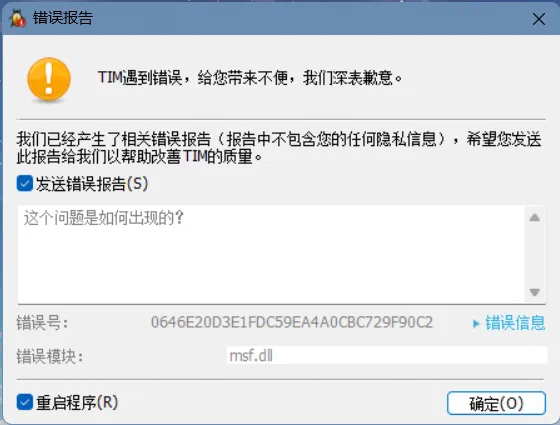
Every time I boot up, I have to manually enable dial-up in the settings. TIM’s auto-start feature kicks in first, triggering the error and making the auto-start function look comically useless.
So, I wrote a batch script to auto-connect and set it to run at startup via Task Manager. But it launches at the same priority as TIM, often failing to establish the connection before TIM auto-logins and throws the error.
The workaround? Using Task Scheduler to delay TIM’s launch by 15 seconds after the auto-connect script runs.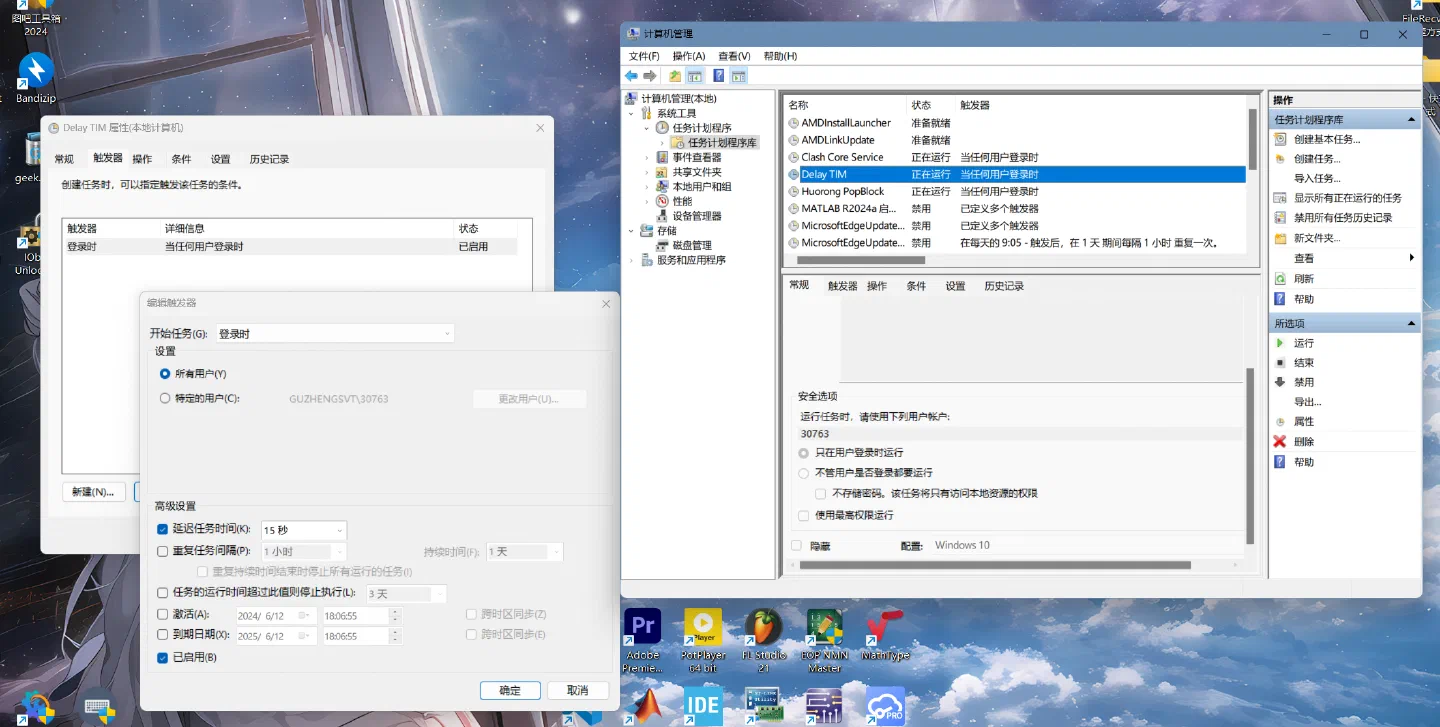
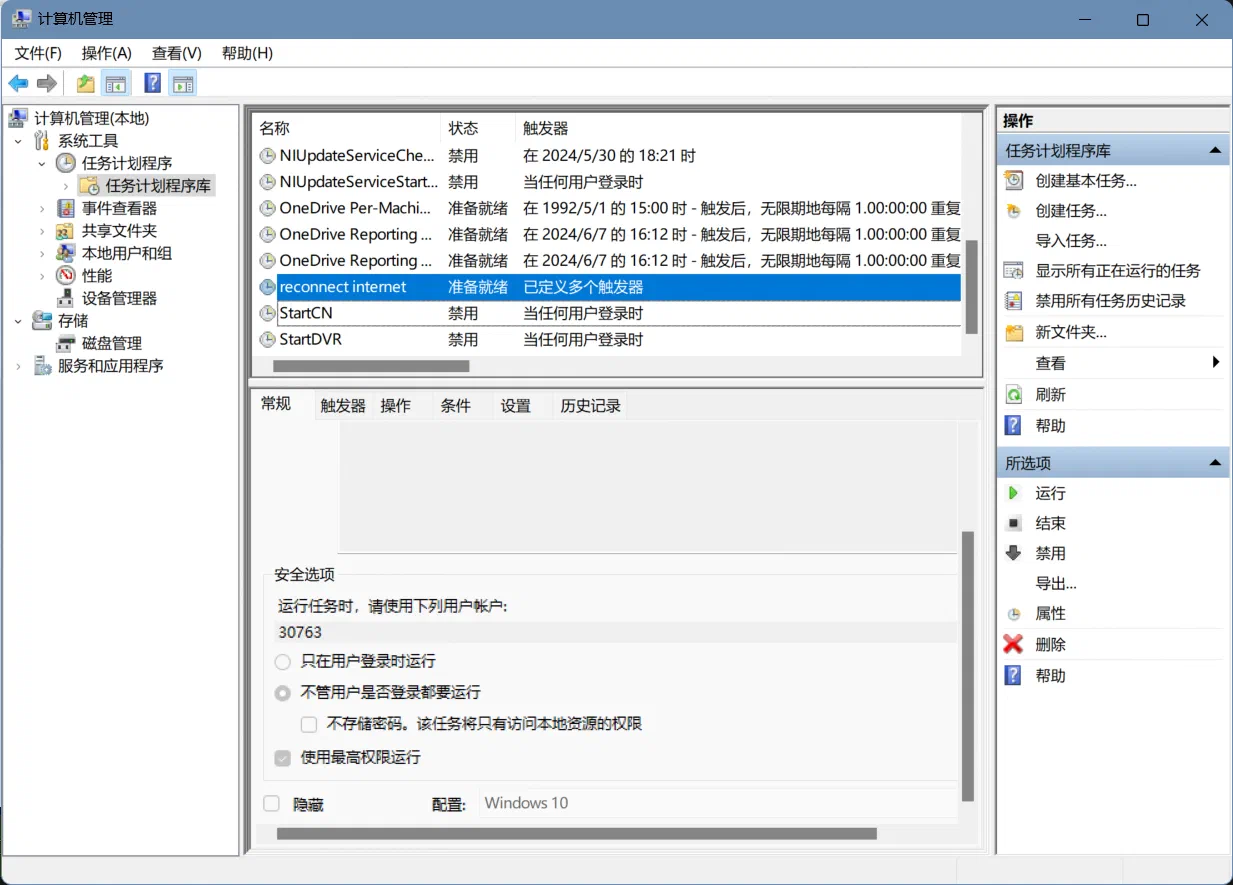
(For convenience, I placed the batch file in the Startup folder. The hidden, highest-priority Task Scheduler job kept failing because brilliant Huorong security blocked undetectable scheduled tasks. After several debugging attempts where the script only ran after login, I almost thought my settings were wrong.)
Now, my ¥68 fingerprint reader feels utterly pointless.
Wondering if any tech-savvy folks in my contacts have a better solution.
I do have a wireless card, but it’s unreliable. The campus network often requires web authentication. My VPN auto-start clashes with this—I have to:
- Disable VPN → 2. Complete web auth → 3. Re-enable VPN → 4. Close TIM’s error → 5. Restart TIM.
Infuriating doesn’t even begin to cover it.
Dial-Up Script
Create a text file (.txt), paste the following, save it, then rename with a desired title (e.g., reconnect_internet, preferably in English) and change the extension to .bat.
rasdial "Your_Connection_Name" "Username" "Password"
Auto-Dial on Boot & Reconnect
- Right-click Windows icon (Start) → Computer Management → Task Scheduler → Task Scheduler Library.
- Create Task → Set name (e.g., “Reconnect”) →
- Run whether user is logged on or not →
- Run with highest privileges (optional) →
- DO NOT HIDE! →
- Configure for your OS (e.g., Windows 11 users select Windows 10).
- Triggers → New →
- At startup (for auto-connect).
- New → On event →
- Log: Application (scroll to second-last) →
- Source: RasClient → OK (for auto-reconnect).
- Actions → New → Start program → Browse to select your
.bat→ OK.
Confirm (requires entering your Microsoft account password, not PIN. If errors persist, check the “General” tab for correct user account matching.)
Author: 孤筝
Title: Automatic Dial-up Internet Connection and Task Scheduler
Published: 2024-06-12
Updated: 2024-06-12
License: CC BY-NC-SA 4.0
Sponsor / I took a taxi home for sixty or seventy dollars!


When will I have a drink and discuss the details again?